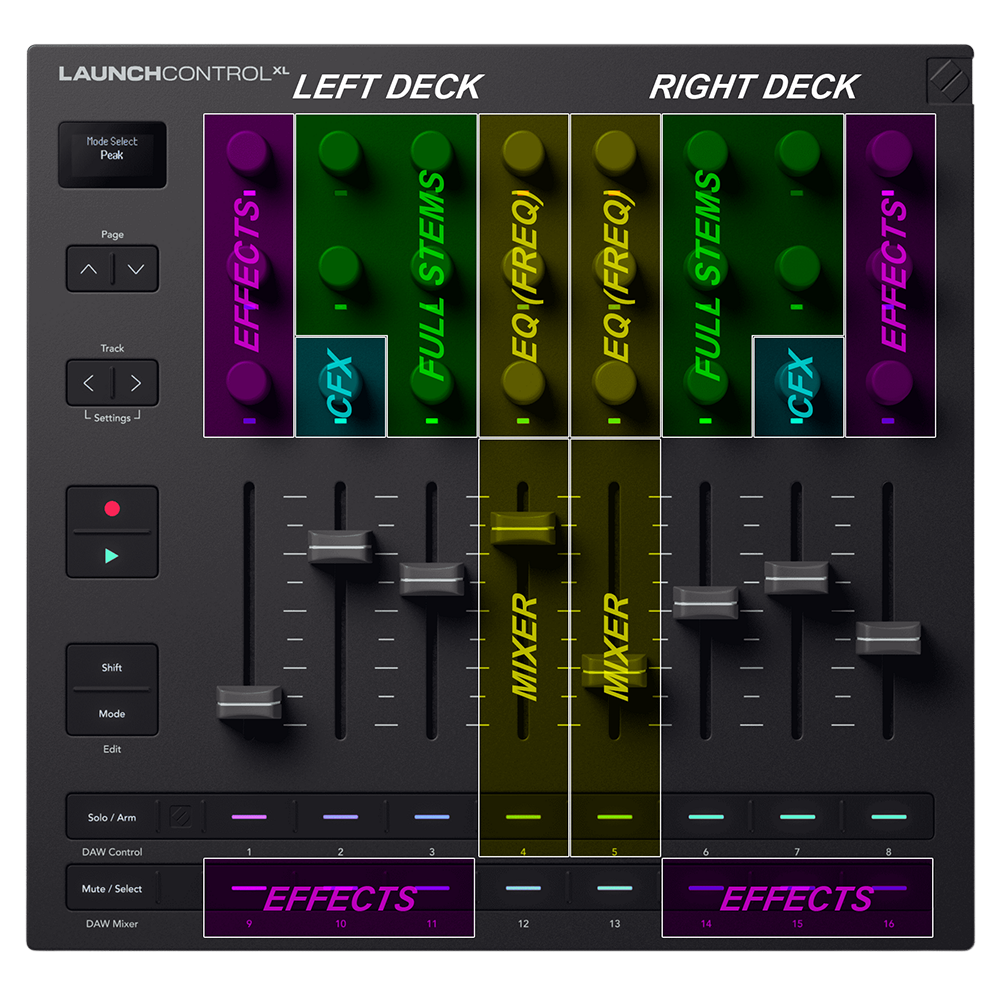
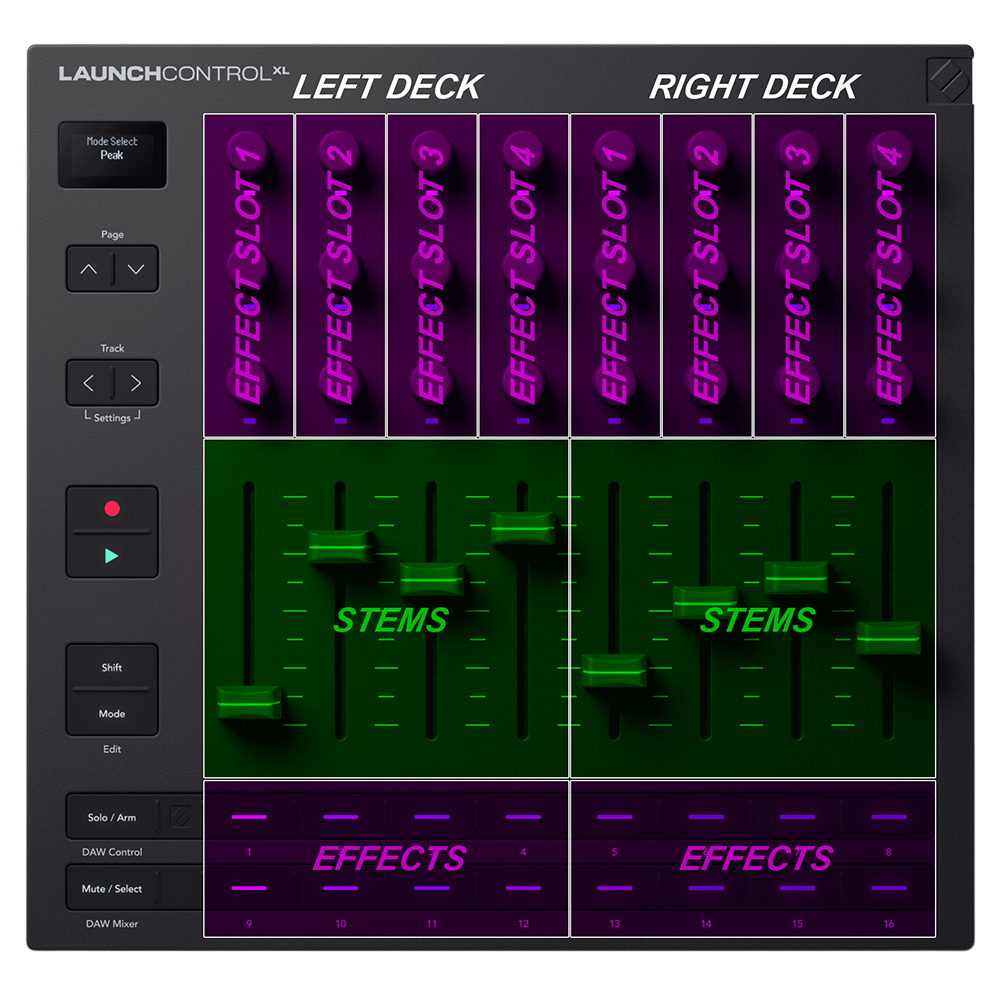
LaunchControl XL 3
Modelli
The Novation LaunchControl XL 3 offers 18 different MIDI Templates (modes/pages)
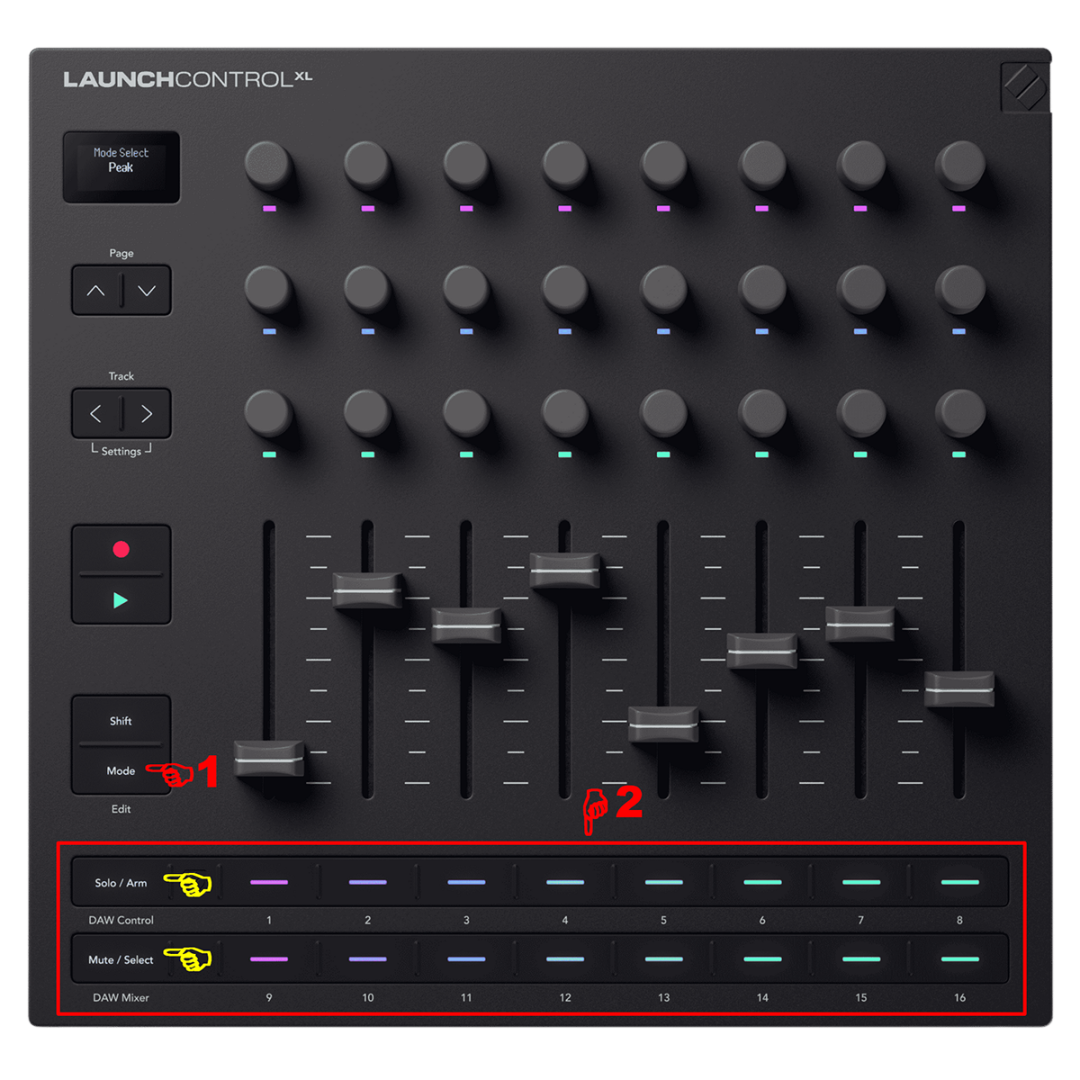
In order to select a template (mode):
- Press once the "MODE" button.
You don't need to keep the button pressed, the button latches. - The device enters template selection mode:
The MODE button LED turns white with full brightness, as also does the currently selected template (mode) button.
All other LEDs from the 16 assignable buttons, turn cyan. - Select either "DAW Control" or "DAW Mixer" modes to use Novation LaunchControl XL 3" without any limitations with VirtualDJ:
The selected mode will turn it's LED white with full brightness. - Press the "MODE" button again to exit template selection mode.
When using "DAW Mixer" or "DAW Control" templates, VirtualDJ is in full control of Novation LaunchControl XL 3.
This means that in these two modes, VirtualDJ can use the encoders on relative or absolute mode, it can control all the RGB leds, and of course display information on the OLED display.
When using any of the other 16 simple templates, VirtualDJ can only use the encoders in absolute mode, and it cannot control the LEDs, or the OLED display. Also, when using any of the 16 simple templates, only the 24 encoders, 8 faders and 16 buttons are accessible inside VirtualDJ.
The 16 simple templates are pre-defined in VirtualDJ, but in case different MIDI Channels/Notes/CC are defined from the Novation Editor, their MIDI keys may not be recognized from VirtualDJ. Therefore if you have trouble using any of the 16 simple templates, it's advised to use Novation Editor to upload the default template(s) back to the device.