RMX-95
CONTROLS
The Reloop RMX-95 offers mostly hardware/internal functionality for which you will need to read the Reloop RMX-95 manual from https://www.reloop.com/reloop-rmx-95
In this manual we will describe only the additional software functionality and options when using VirtualDJ
SOURCE SELECT
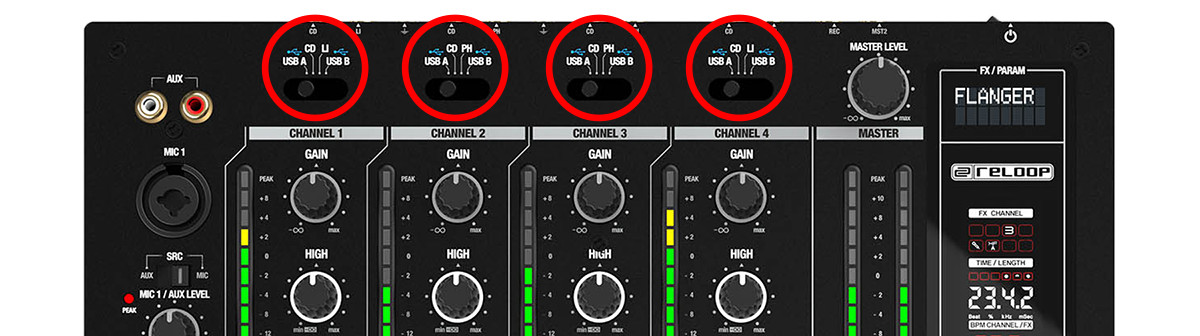
Make sure all the Mixer Channels are set to USB A or B source (depending on the USB port of the RMX-95 you used to connect it with your computer) in order for VirtualDJ to receive and send Audio and MIDI functionalities.
If any of the Mixer Channels are not set to USB A/B source, then VirtualDJ will not be able to send or receive Audio and MIDI from those Channels.
CHANNELS LAYOUT
By default VirtualDJ is using a 3-1-2-4 deck order.
This means that from left to right the channels are Deck C, Deck A, Deck B and Deck D
EQUALIZER & STEMS
Reloop RMX-95 offers two different modes of operation in order to allow better stems control.
- The EQ knobs can me set either to "Software" mode where the mixer sends MIDI data but doesn't apply any eq transformations when using the knobs, or
- The EQ knobs can be set to "Hardware" mode where the mixer is applying it's own 3-Band Equalizer when using the eq knobs, besides sending MIDI data.
The default operation mode is "Software" mode
Software EQ Mode
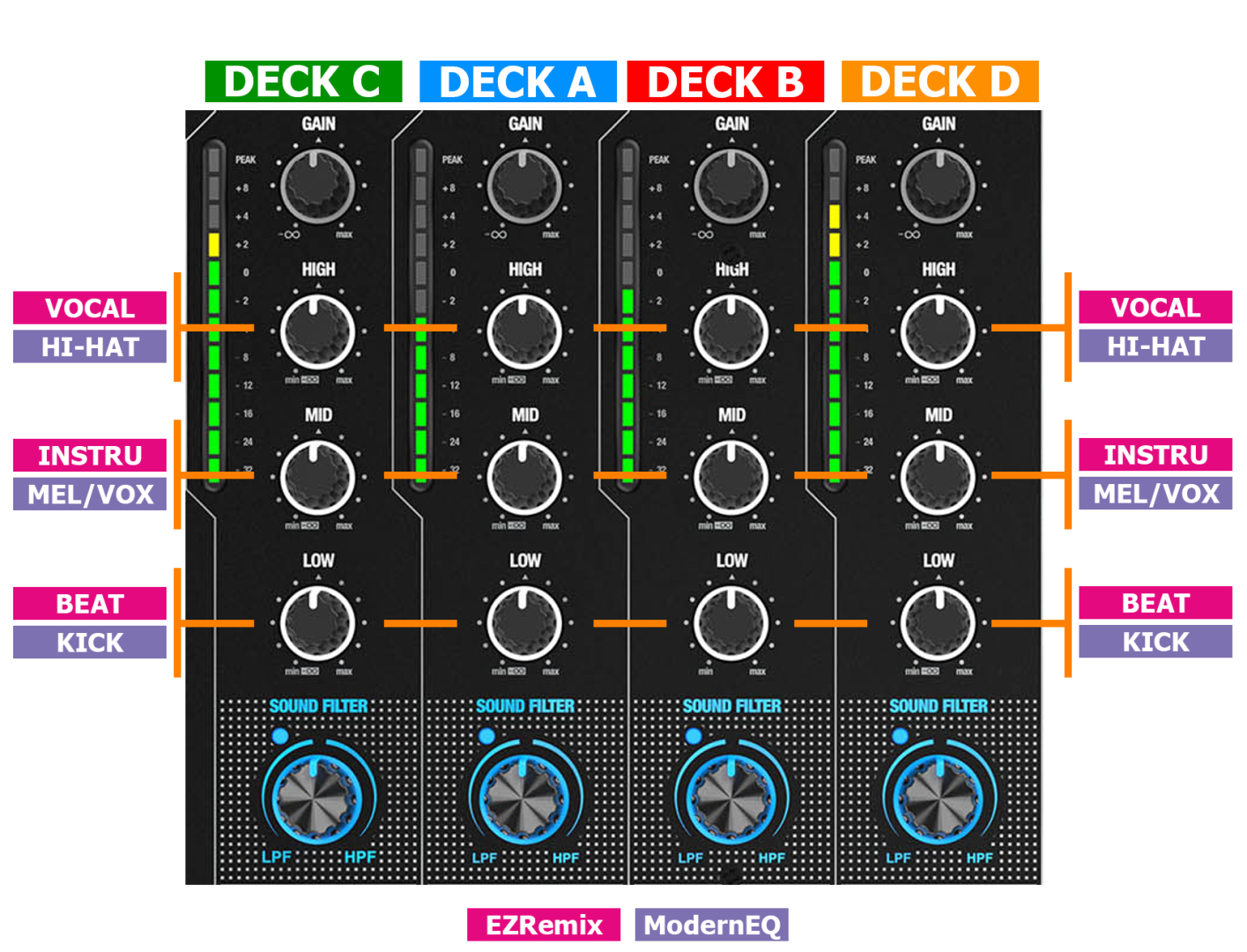
Because the unit can switch only 3 of it's knobs to software operation mode, you can effectively use only EZRemix and ModernEQ stem modes.
The unit doesn't offer a dedicated button to allow switching between modes.
You can use VirtualDJ GUI to select your desired mode of operation.
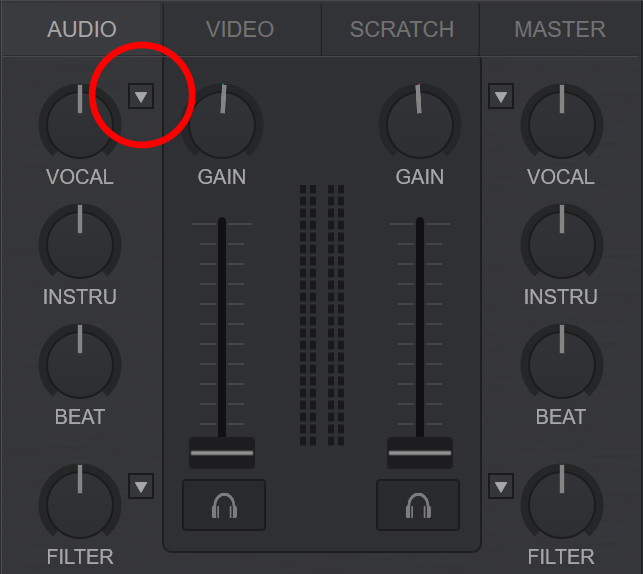
Hardware EQ Mode
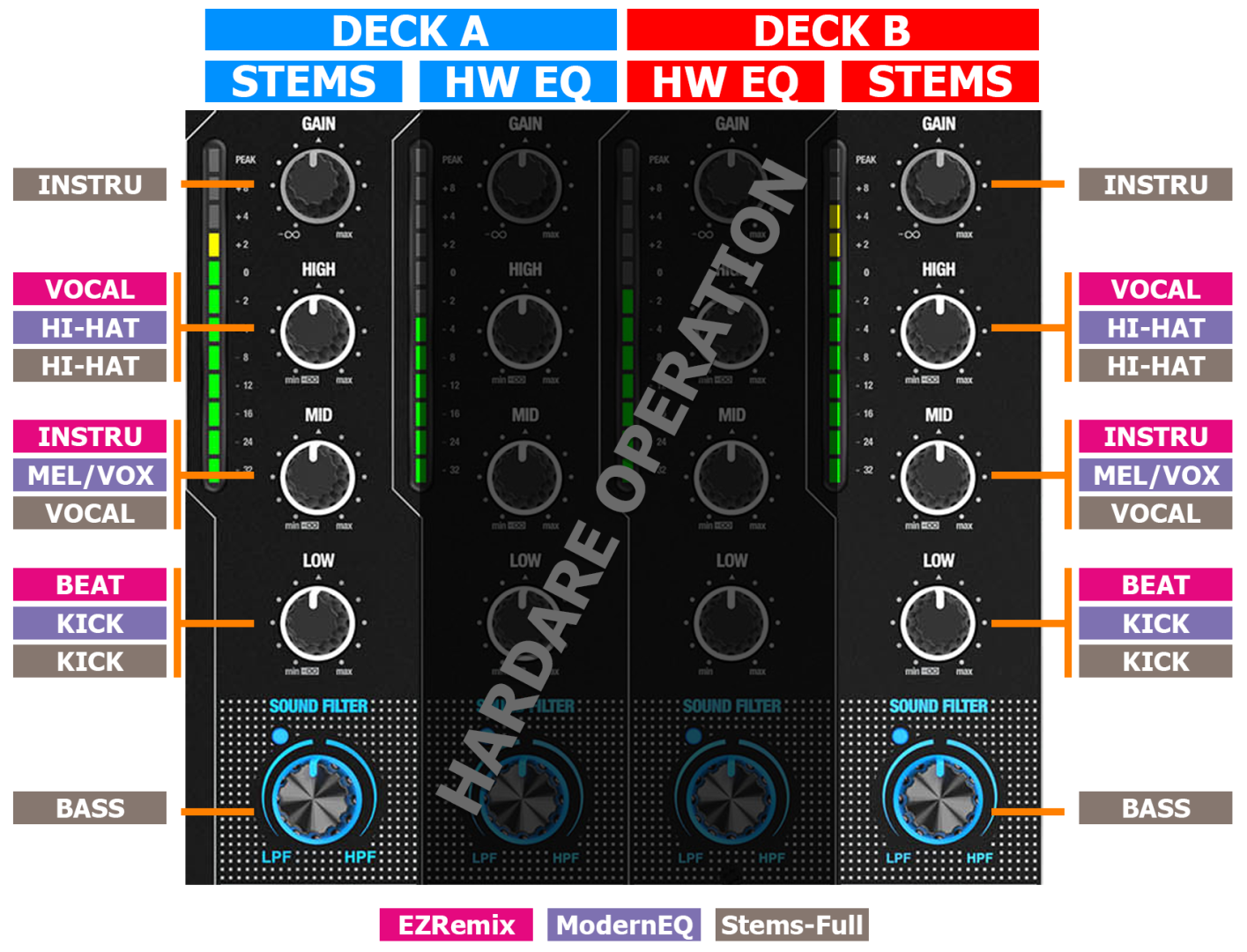
The unit doesn't offer a dedicated button to allow switching between modes.
You can use VirtualDJ GUI to select your desired mode of operation.
Switching EQ Modes
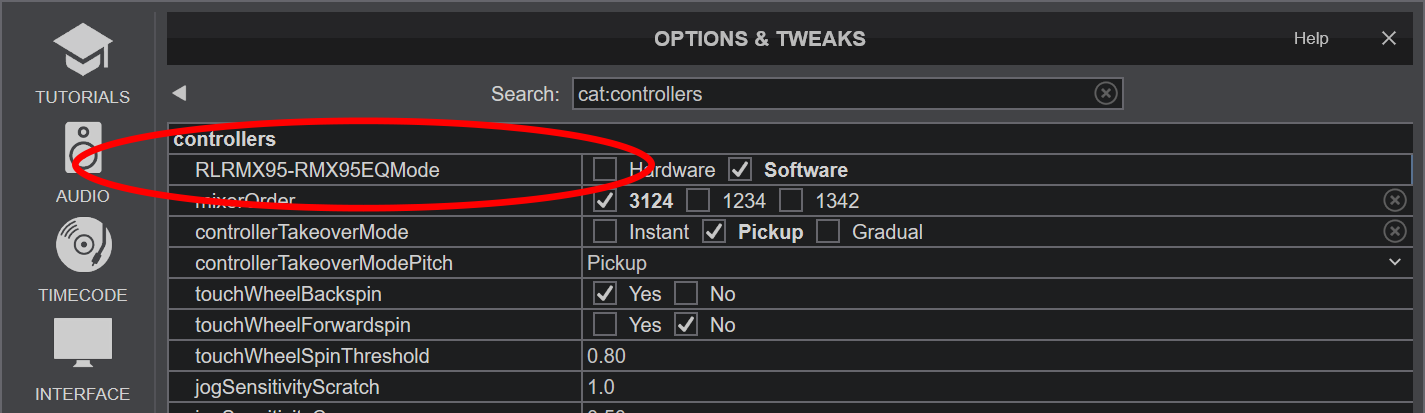
You can switch EQ Mode by opening VirtualDJ config, clicking the Options tab and then the Controller icon.
You can now change the RLRMX95-RMX95EQMode setting to select the desired mode of operation.