Manuale utente
One Library
OneLibrary provides the ability to prepare folders and playlists inside of VirtualDJ and export them to a USB drive in order to play on any CDJ. Cue points and automatic Stem Separation can be exported in order to provide a seamless transition to traditional hardware without the need for a computer.
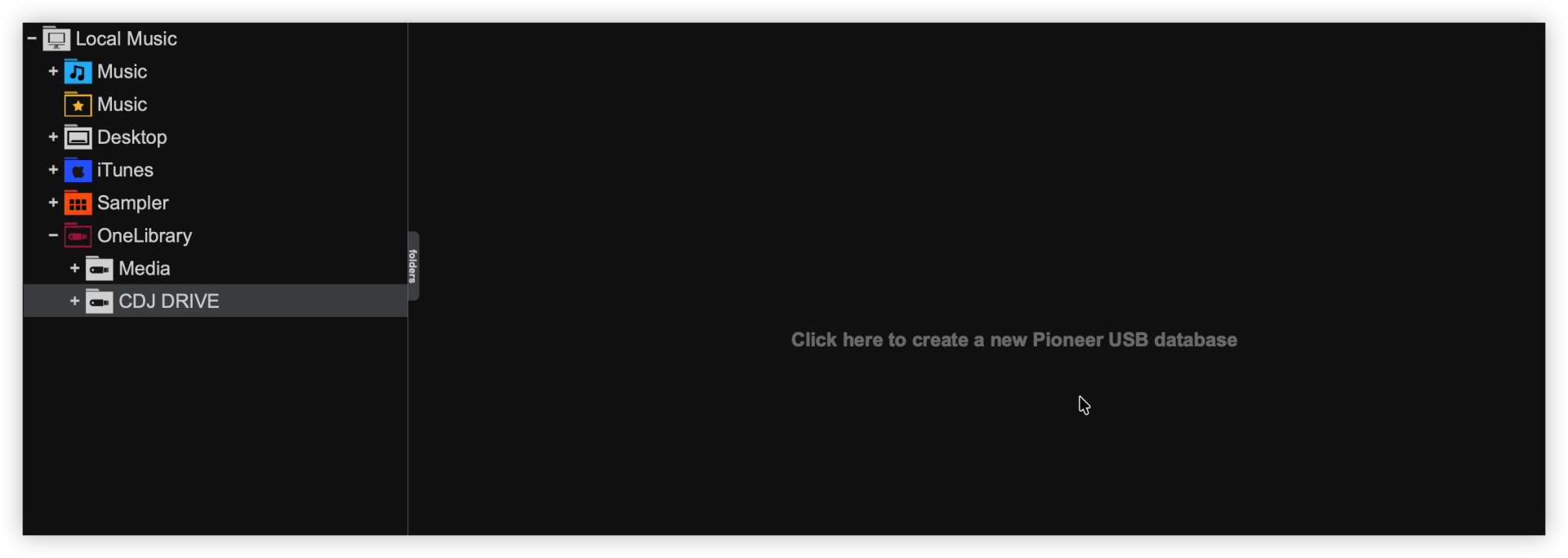
With a USB drive connected, click on the OneLibrary folder to display any connected drives. If the drive does not have a CDJ database, click on the empty browser to create one.
You can now drag and drop files directly to the Browser's File List.
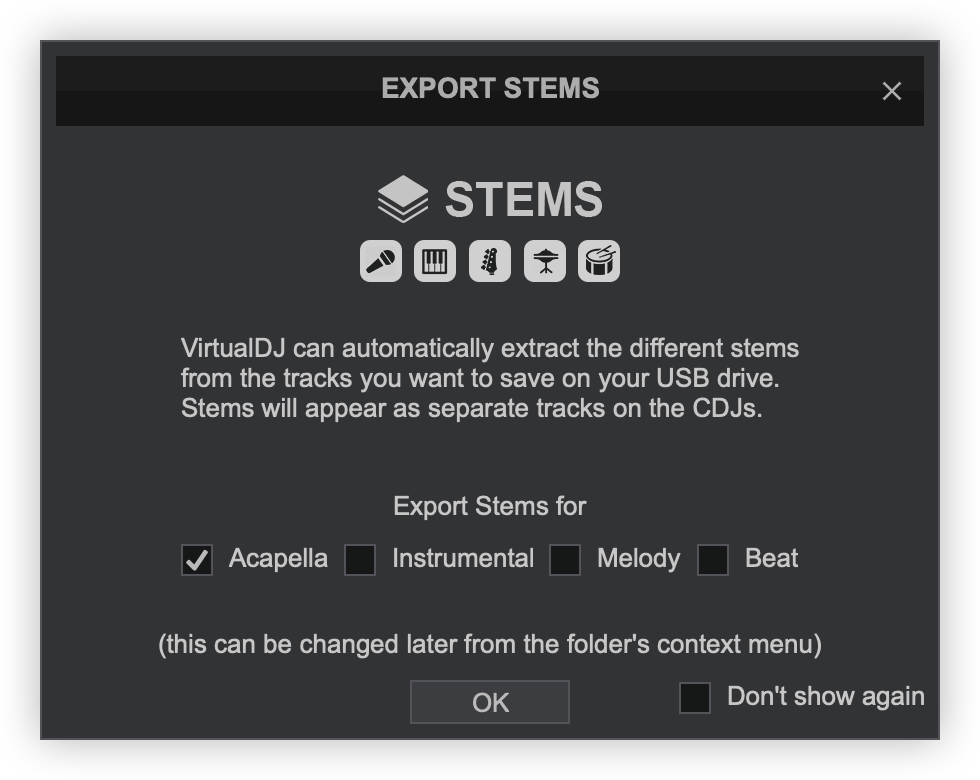
When you first drag a file to the File List, a Stems Export window will appear giving you options of which stems you'd like to export (if any). Choose which stems you wish to be exported. This can be changed later in the context menu.
Select Don't show again if you don't want to see the Stems Export window again.
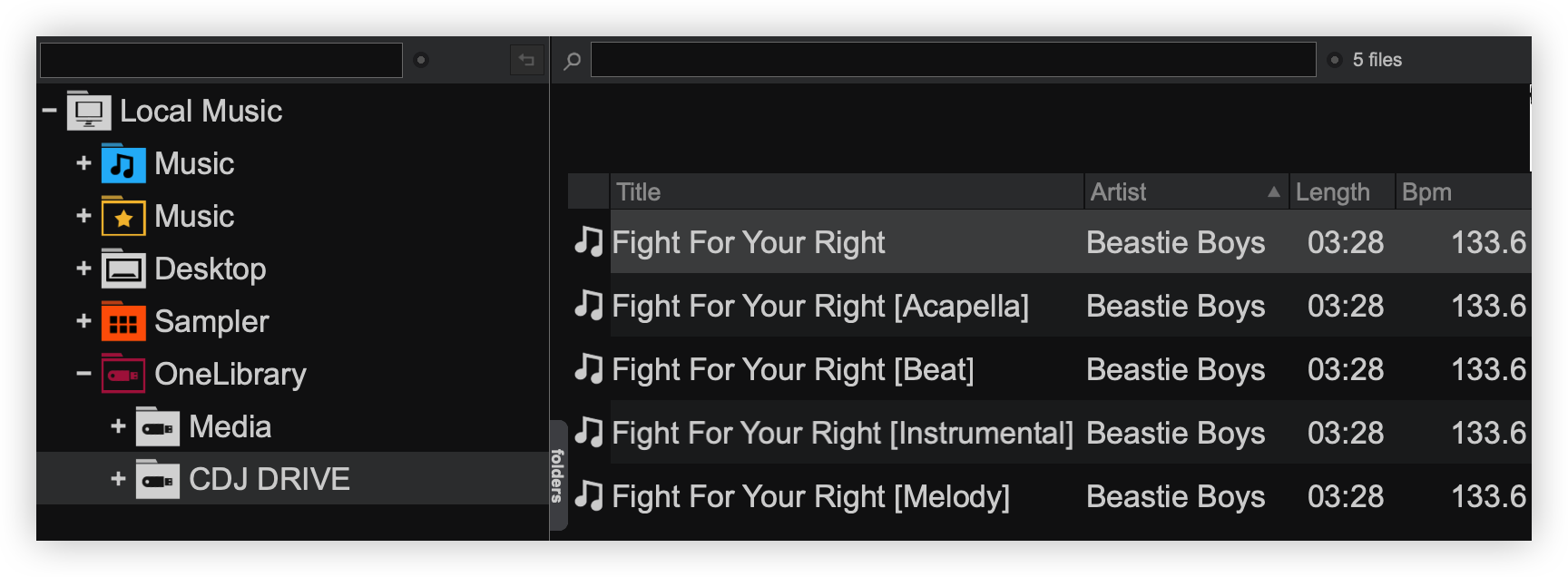
When a file is dropped into the File List, it will get copied to the USB drive with each individual Stem listed and labeled as a separate file.
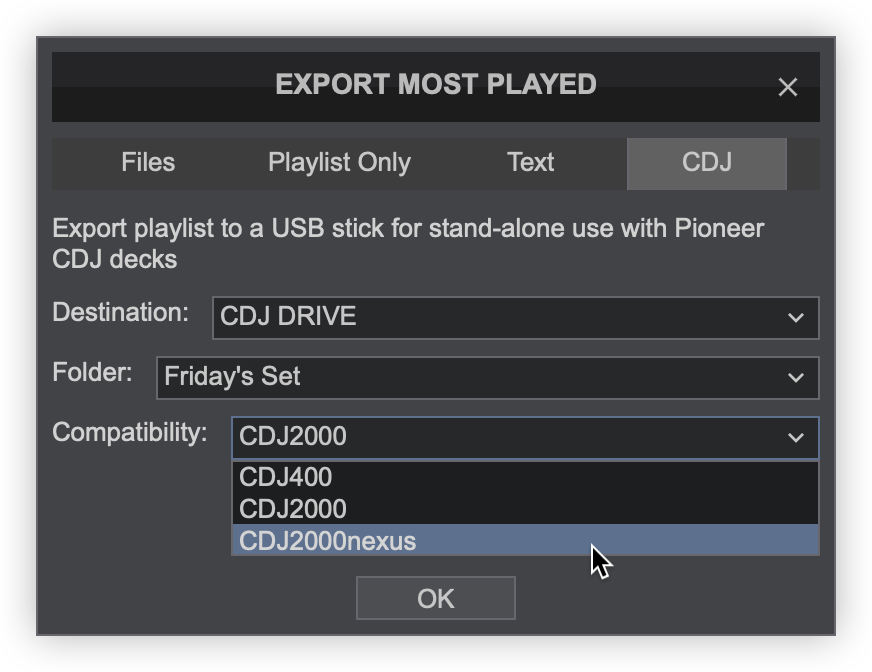
export lists
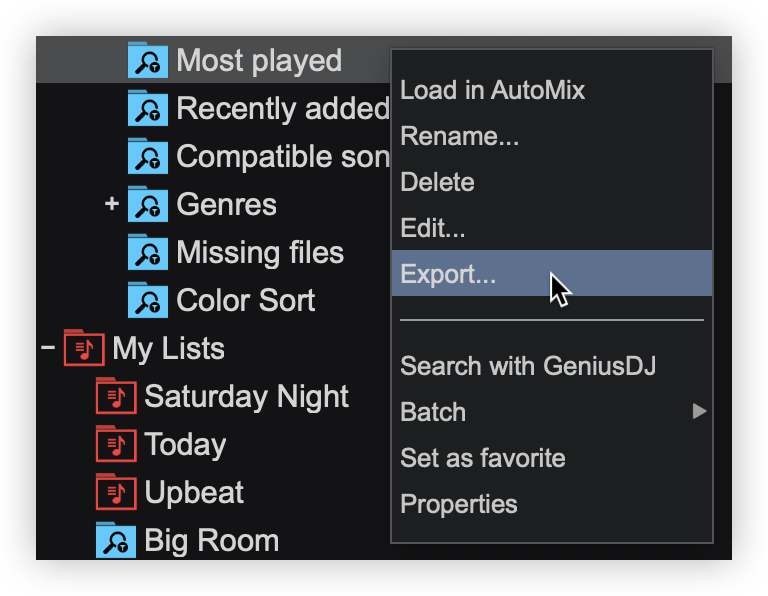
Click OK to begin the export process.
context menus
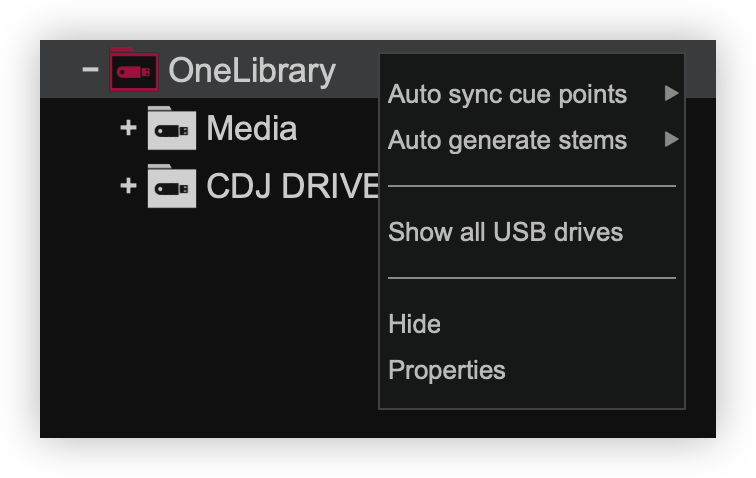
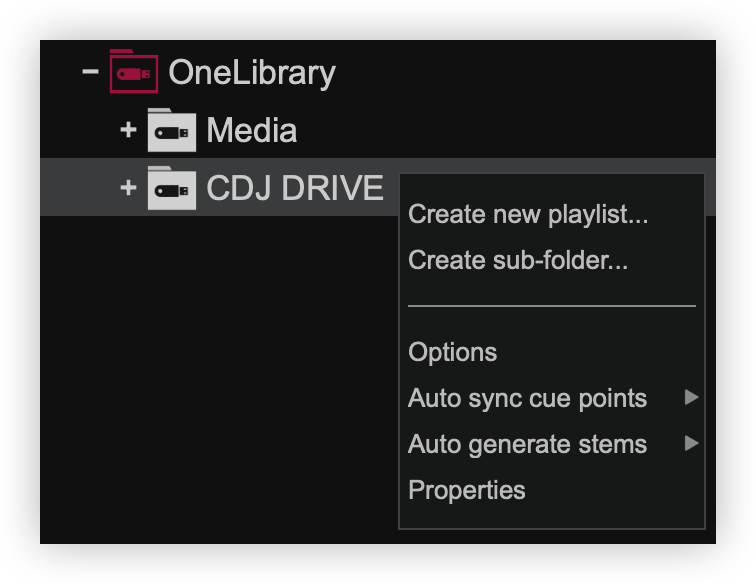
Both the OneLibrary folder and each Drive in the folder have separate context menus for easy management. The OneLibrary folder's context menu applies the same settings for each drive in the folder while the Drive context menu gives the ability to manage each connected drive individually.
FOLDER CONTEXT MENU
The folder context menu allows you to check or uncheck the properties that you wish to be applied to every drive in the folder.
DRIVE CONTEXT MENU
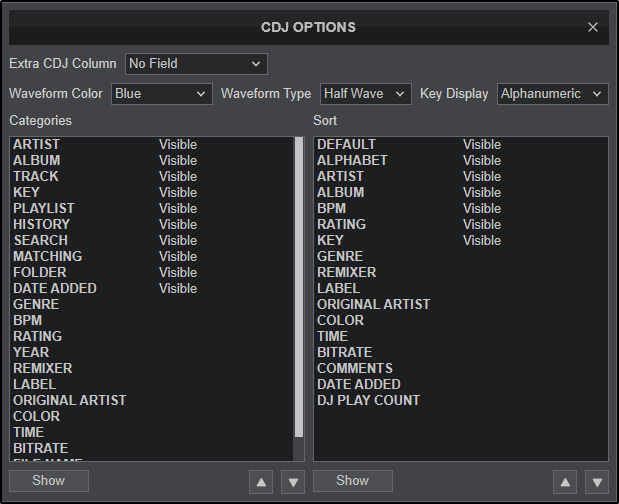
The drive context menu allows you to check or uncheck the properties that you wish to be applied to each specific drive, add folders and playlists, as well as edit the CDJ display.